
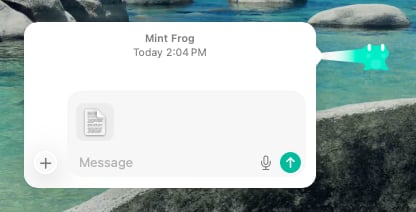
The chat stays connected to its goop. Type in Message, or drop in a file.
While it’s working
Go ahead and keep typing. Your next message waits as Queued and reaches the goop at its next step. Claude Code and Codex even read it mid-task. Press Esc or the stop button to stop this goop, or ⌃⌥⌘. to stop every goop at once. Quitting Goop doesn’t interrupt anything: the next time you open it, the goop picks up mid-answer.Giving it things
Drag files onto a goop from Finder, Mail, Photos or your browser. Each one arcs in as a little droplet, and the goop holds it as a pearl of goo until your next message. You can also paste a screenshot with ⌘V. Nothing is sent until you send it, and the answer tells you which file each point came from. From any other app, Share › Goop or Services › Send to Goop hands a goop whatever you’ve shared or selected.Oops, undo that
If a goop changed files and you’d rather it hadn’t, right-click it and choose More › Undo Changes. Goop saves the folder before every turn, so it can put things back. Undid too much? The undo can be undone too.Starting fresh
More › New Chat gives a goop a clean slate while keeping its looks, its window and its personality. Finished planning dinner and ready to work on your résumé? Start a new chat so the old conversation doesn’t come along. To find an old conversation, click the blob in the bar. You’ll see every goop that’s out right now and every earlier chat, and you can search as you type. Reopen one and it carries on where it left off.It can remind itself
Ask a goop to check back later and it sets its own reminder: at a time, every so often, when a file shows up in a folder, when an app opens, or when a web page changes. Until then it rests.“Tell me when this build finishes.” “Check this page every morning and let me know if the price drops.”
Things to try
What a goop can do depends on its agent, its window, and what you’ve allowed. A few to start with:On a web page or document
On a web page or document
“What’s this saying, in two lines?” · “Help me reply to this.” · “Is anything in this contract unusual?”
In a terminal or code editor
In a terminal or code editor
“Why is this test failing?” · “What does this function do?” It already knows the folder and what’s running.
Around your Mac
Around your Mac
“Add this to my Reminders.” · “Make a calendar event from this email.” Goops can work Mail, Calendar, Reminders, Notes and Finder, and run your Shortcuts. macOS asks you once per app.
Things you do every week
Things you do every week
Show it once, and next time just ask.